

Cart
Cart page is the page where user can see the list of products in the cart.
Cart blocks
Blocks used in the cart page.
| Block Name | Description | Image |
|---|---|---|
shopify/cart-line-item | Cart card block is used to display the product card in the cart page. | 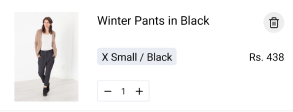 |
shopify/header-notice | Header notice block is used to display the header notice. |  |
shopify/cart-summary-table | Cart summary table block is used to display the cart summary table. | 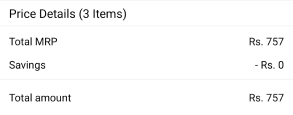 |
appmaker/checkout-button | Checkout button block is used to display the checkout button. |  |
shopify/apply-coupon | Apply coupon block is used to display the apply coupon button. |  |
example page:
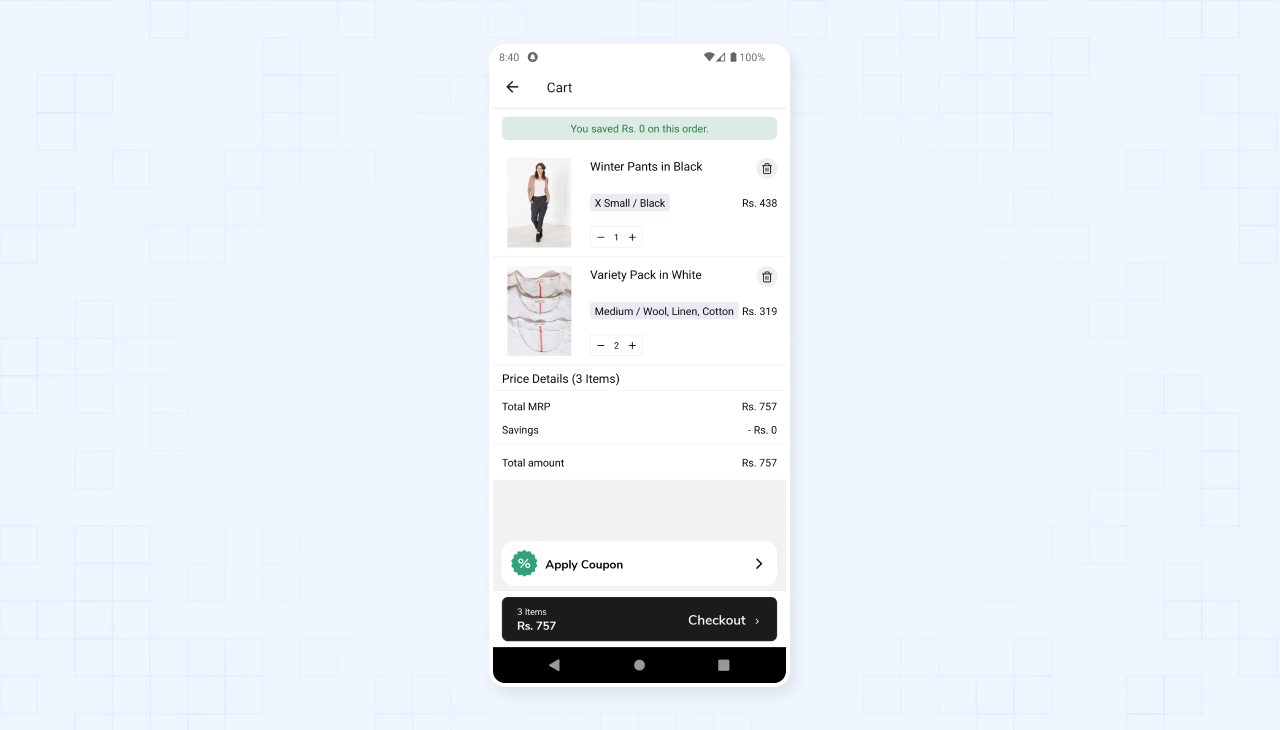
Block customization example:
1. Create a new component.
Cart card component (Sample code)
import React from "react";
import {
  ActivityIndicator,
  StyleSheet,
  useWindowDimensions,
} from "react-native";
import {
  Layout,
  ThemeText,
  AppTouchable,
  AppImage,
  StepperButton,
} from "@appmaker-xyz/ui";
import { useCartProduct } from "@appmaker-xyz/shopify";
import Icon from "react-native-vector-icons/Feather";

const CartCard = (props) => {
  const {
    title,
    imageUri,
    variationText,
    onSale,
    quantity,
    onRemoveItem,
    removeLoading,
    quantityLoading,
    itemSavingsWithCurrency,
    openProduct,
    canRemoveItem,
    canUpdateQuantity,
    lineItemSubTotalPriceWithCurrency,
    increaseQuantity,
    decreaseQuantity,
    hasSavings,
    variantLineItemRegularPriceWithCurrency,
    hasDiscount,
  } = useCartProduct(props);

  const { width } = useWindowDimensions();

  return (
    <Layout style={[styles.container, { width: width }]}>
      <AppTouchable onPress={openProduct} style={styles.imageContainer}>
        <AppImage
          uri={imageUri}
          resizeMode="contain"
          style={styles.imageStyles}
        />
      </AppTouchable>
      <Layout style={styles.contentContainer}>
        <Layout style={styles.titleContainer}>
          <ThemeText
            size="md"
            fontFamily="medium"
            style={styles.textShrink}
            numberOfLines={2}
          >
            {title}
          </ThemeText>
          {canRemoveItem ? (
            <AppTouchable
              style={styles.deleteIcon}
              disabled={removeLoading}
              onPress={onRemoveItem}
            >
              {removeLoading ? (
                <ActivityIndicator size={16} color="#212121" />
              ) : (
                <Icon name="trash-2" size={16} color="#212121" />
              )}
            </AppTouchable>
          ) : null}
        </Layout>
        <Layout style={styles.rowBetweenContainer}>
          {variationText ? (
            <Layout style={styles.variantText}>
              <ThemeText fontFamily="medium" numberOfLines={2}>
                {variationText}
              </ThemeText>
            </Layout>
          ) : null}
          <Layout style={styles.priceContainer}>
            {onSale || hasDiscount ? (
              <ThemeText style={styles.regularPrice} color="#807F7F" size="sm">
                {variantLineItemRegularPriceWithCurrency}
              </ThemeText>
            ) : null}
            <ThemeText size="base" fontFamily="medium">
              {lineItemSubTotalPriceWithCurrency}
            </ThemeText>
          </Layout>
        </Layout>
        <Layout style={styles.rowBetweenContainer}>
          {canUpdateQuantity ? (
            <StepperButton
              quantity={quantity}
              increaseQuantity={increaseQuantity}
              decreaseQuantity={decreaseQuantity}
              isLoading={quantityLoading}
              containerStyle={styles.stepperContainer}
            />
          ) : (
            <Layout />
          )}
          {hasSavings ? (
            <ThemeText size="sm" color={"#16A34A"}>
              {itemSavingsWithCurrency} Saved
            </ThemeText>
          ) : null}
        </Layout>
      </Layout>
    </Layout>
  );
};

const styles = StyleSheet.create({
  container: {
    backgroundColor: "#fff",
    flexDirection: "row",
    borderBottomColor: "#EEEEEE",
    borderBottomWidth: 1,
  },
  imageContainer: {
    flexDirection: "row",
  },
  imageStyles: {
    width: 100,
    height: 120,
    marginVertical: 12,
  },
  contentContainer: {
    flex: 1,
    justifyContent: "space-between",
    padding: 12,
  },
  titleContainer: {
    flexDirection: "row",
    justifyContent: "space-between",
    marginLeft: 6,
  },
  rowBetweenContainer: {
    flexDirection: "row",
    alignItems: "center",
    justifyContent: "space-between",
    marginLeft: 6,
  },
  deleteIcon: {
    backgroundColor: "#eee",
    borderRadius: 16,
    height: 28,
    width: 28,
    alignItems: "center",
    justifyContent: "center",
  },
  textShrink: {
    flexShrink: 1,
  },
  variantText: {
    flexDirection: "row",
    alignItems: "center",
    paddingHorizontal: 6,
    paddingVertical: 2,
    backgroundColor: "#E9ECF3",
    borderRadius: 4,
    flexShrink: 1,
    marginRight: 4,
  },
  priceContainer: {
    flexDirection: "row",
    alignItems: "center",
  },
  regularPrice: {
    marginRight: 4,
    textDecorationLine: "line-through",
  },
  stepperContainer: {
    borderRadius: 2,
    borderColor: "#E9ECF3",
  },
});

export default CartCard;
Note: The
useCartProducthook is used to get the data for the cart card. The hook is available in the@appmaker-xyz/shopifypackage. Refer to the useCartProduct
2. Register the newly created block
Register Block (Sample Code)
import CartCard from './CartCard';

const blocks = {
  {
    name: 'appmaker/cartCard',
    View: CartCard,
  },
};

export { blocks };
3. Add / Override the block to a page
Add to page (Sample Code)
Add the block to a page by adding the block name to the page's blocks array.
const page = {
  name: "Cart",
  blocks: [
    {
      name: "appmaker/cartCard",
      attributes: {},
    },
  ],
};