

How to get settings/config from dashboard in extension
Let's split this into two parts.
- How to add settings/config in dashboard
- How to get settings/config in extension
How to add settings/config in dashboard
-
Create input fields required in theme/extension settings using appmaker form. Follow the doc for creating appmaker form Now you have the json with multiple input fields.
sample JSON:
{ "properties": { "background_color": { "label": "Theme AccentColor", "uiType": "ColorPicker", "type": "string" }, "title": { "label": "Title", "type": "string", "description": "Sample Description" }, "slider_type": { "type": "string", "title": "Slider Type", "uiType": "RadioGroup", "options": [ { "label": "Type 1", "value": "type-2" }, { "label": "Type 2", "value": "type-2" } ] } } } -
Now you have to add this json into your partner dashboard. For that you have to login to your partner dashboard and go to the Extensions/Themes section based on what you are using. Add the JSON in the settings schema section of your extension/theme.
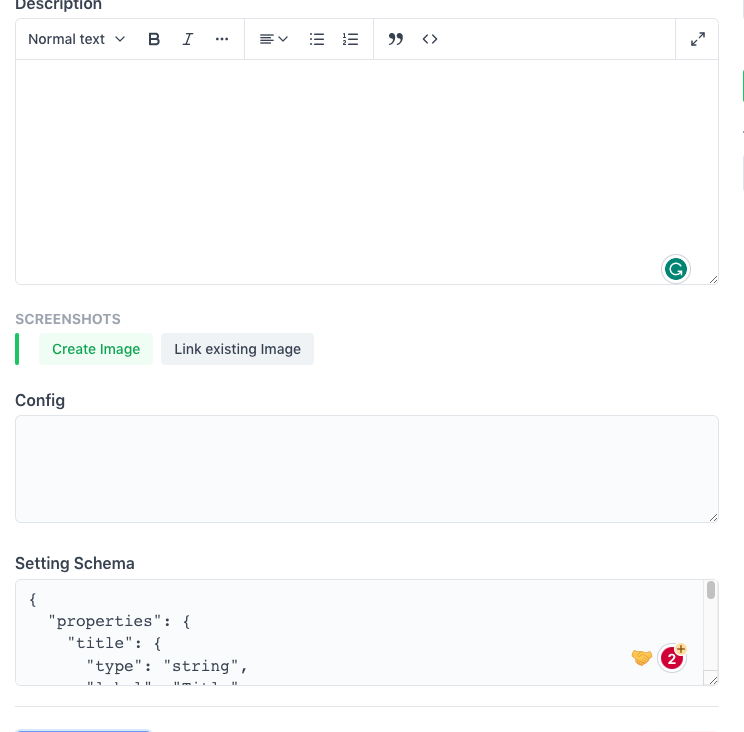
- save it.
How to get settings/config in extension
- In your extension, create a file named
config.json the root level and add the following code in it.
let settings = {};
const setSettings = (_settings) => {
    settings = _settings;
};
const getSettings = () => {
    return settings;
};
export { setSettings, getSettings, settings };- Call this function in your extension's
index.jsfile.
import { setSettings } from './config';

export function activate(params) {
    setSettings(params?.settings);
}- Now you can access the settings in your extension using the
getSettingsfunction.
import { getSettings } from './config';

const settings = getSettings();